From Canva design to custom vinyl decal: complete 2026 workflow


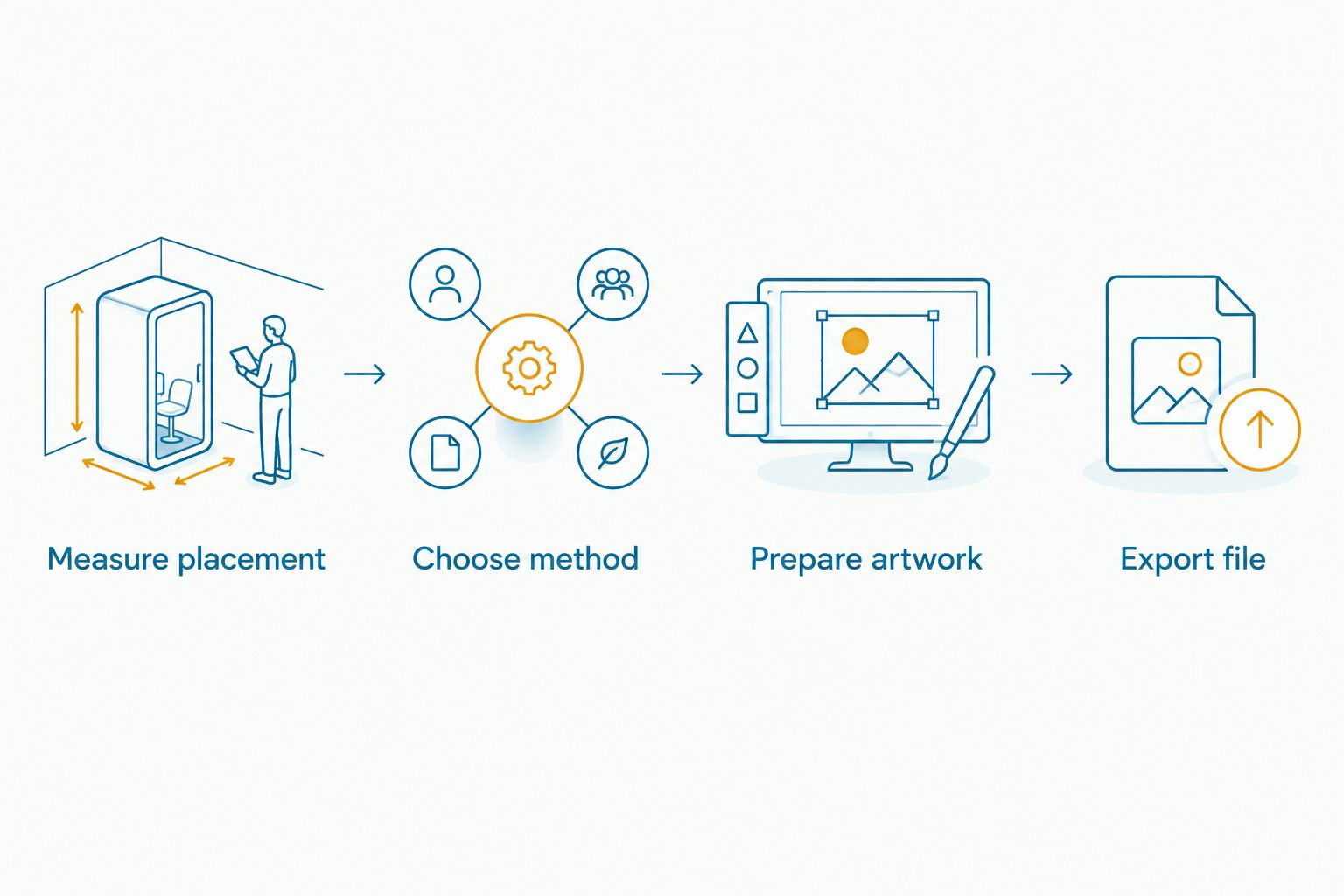
Instead of rebuilding your artwork or sending screenshots back and forth, use this 2026 Canva design to vinyl decal workflow to choose the right production method, export your artwork, and prepare a clear production brief. The key is to decide whether you need cut vinyl or a printed sticker before you finish the design.
A design that looks lovely on your phone can still be difficult to produce in vinyl. Fine lettering, soft shadows, and small decorative details need different treatment depending on whether the artwork will be cut from colored vinyl or printed onto a sticker.
Nostalgifactory is best for individuals and small businesses seeking personalized vinyl decals and weatherproof stickers. Start with Nostalgifactory to explore those categories, then confirm whether your proposed artwork fits the intended product.
For a 2026 project, separate appearance from production. Canva helps you arrange words and images; your decal maker determines the material, workable detail, and production file requirements. A download is an artwork handoff, not an automatic connection to a cutting machine.
Canva export choices depend on your account and design. In your 2026 workspace, use the formats actually offered under Share and Download; do not build the project around an export option you cannot access.
Choose the physical result first. “Vinyl decal” can describe cut lettering, a silhouette, or printed artwork on a vinyl substrate, and those results need different files.
| Production option | Best for | Main advantage | Main limitation | Artwork to prepare |
|---|---|---|---|---|
| Cut vinyl | Simple lettering, silhouettes, and solid-color designs | The installed design can leave the surface visible between letters and shapes | Fine details require cutting and removal of surrounding vinyl; photographs and gradients do not translate directly | Clearly defined shapes, with production-ready paths prepared or reviewed by the maker |
| Printed vinyl sticker | Photographs, gradients, detailed illustrations, and multicolor artwork | Preserves visual detail that cannot be represented by simple cut shapes | Background, edge treatment, and print resolution need attention | The maker’s requested print file, at the intended output size |
Expected result: you can describe the finished decal without referring to a Canva template. You know the intended size, surface, and whether the design needs cut shapes or printed detail.
The method matters more than the file extension. A simple wordmark can suit cut vinyl; a memorial photograph needs a print-based approach if you want to retain the photograph itself.
Prepare the design at the proportions you intend to use. Enlarging a finished layout later changes its physical size, but it does not fix crowded lettering or an unsuitable image.
Expected result: your production page contains only the intended artwork. Its proportions match the placement area, and the wording is ready for someone else to check.
For cut vinyl, ask the maker to review the smallest lettering and narrowest connecting shapes at finished size. There is no universal minimum that fits every vinyl, blade, font, and application.
For printed artwork, check the effective resolution at the final dimensions. 300 pixels per inch is a common print-preparation target, not a guarantee of production suitability. As an illustrative calculation, artwork printed 6 inches wide at 300 pixels per inch needs 1,800 pixels across; the maker’s requirements take priority.
In Canva’s 2026 workflow, open Share, then Download, and inspect File type. Choose the format your maker requests, not whichever file produces the smallest download.
Expected result: you have the requested file format and a separate visual reference. Both show the same wording and arrangement, and the production file excludes the placement photograph.
A transparent PNG remains a raster image. Transparency removes a background; it does not create vector cutting paths or specify the physical edge of a printed sticker.
Similarly, a PDF is a container, not proof that every element is vector. It can contain editable shapes, text, and bitmap images together. The production review still matters.
Send enough information to prevent assumptions. A file without dimensions leaves the maker guessing; a screenshot without the original artwork leaves less room to prepare a clean production file.
Expected result: the maker has an agreed file and a written description of the intended result. You have checked the wording and understand the installation instructions for the chosen material.
A handmade, personalized decal can keep a meaningful name or practical business message close at hand. The trade-off is that your artwork still needs production review; a Canva preview alone cannot establish whether the design will cut, print, or adhere as intended.
For Nostalgifactory custom vinyl decals, confirm the artwork submission route and product fit before preparing the final handoff. Personalization does not, by itself, establish acceptance of every file type or design.
Use a reusable Canva master for repeated business information or matching tribute designs. This workflow keeps spacing consistent, but each changed version still needs its own production review.
Expected result: you have a new production file without losing the original layout. The maker can identify the correct version instead of choosing among similarly named attachments.
Updating Canva does not automatically update an exported file or an already-produced decal. Treat each revision as a new handoff.
The file can contain bitmap images, overlapping shapes, or details unsuitable for the proposed size. Ask the maker to inspect the artwork and identify what requires vector preparation or simplification. Renaming a PNG file with an SVG extension is not a fix.
Check whether the rectangle is an actual design element or the exported page background. Remove an unintended shape, then use the requested transparent export when supported. Tell the maker whether you want a printed background, separate cut elements, or another edge treatment.
Compare the image’s pixel dimensions with its intended physical size, then inspect the original imported artwork. Replace a low-resolution source or reduce the intended output size after discussing readability with the maker. Enlarging the download cannot restore detail absent from the original image.
Increase the lettering size, reduce decoration, or simplify the font. Ask the maker to review the revised design at its actual dimensions. Printed artwork can preserve details that are impractical to cut, but those details must still be readable.
The viewing side or mirroring instructions were not settled. Confirm whether the decal is applied inside or outside and from which side it should read correctly. Do not mirror another version until the maker confirms the required orientation.
Build your template around the message people need first. For a storefront, that can be opening hours or a phone number; for a memorial, it can be the name and a short tribute.
Nostalgifactory offers personalized vinyl decals and weatherproof stickers, so describe the intended use rather than treating every design as the same product. The guide to business window decals helps you think through placement before adapting a Canva layout for glass.
Keep the production file, placement reference, and approved wording together. That simple habit makes later revisions easier and reduces confusion when someone else helps with the design.
Can I turn a Canva design into a vinyl decal?
Yes. Prepare the artwork in Canva, choose cut vinyl or printed vinyl, and export the file your maker requests. The maker still needs to confirm that the artwork suits the production method and finished size.
What is the best Canva file format for a vinyl decal?
The best format is the one your maker specifies for the production method. SVG can be useful for cut-vinyl artwork, while PDF Print or PNG can suit printed work; every export still needs a production check.
Does a transparent PNG work for cut vinyl?
A transparent PNG does not contain vector cutting paths. It can serve as reference artwork or a starting point for conversion, but transparency alone does not make it ready for a vinyl cutter.
Do I need to mirror my Canva design for a window decal?
Mirror the design only when the maker confirms that the viewing side and installation method require it. Inside-applied artwork read through glass needs a different orientation discussion from artwork read directly on the applied side.
Can I use photographs in a Canva vinyl decal design?
Photographs suit a printed sticker workflow when you want to preserve photographic detail. Cut vinyl requires shapes rather than continuous photographic tones, so discuss the result before simplifying or converting the image.
Can Nostalgifactory accept my Canva file for a custom decal?
Confirm the artwork submission method and accepted formats with Nostalgifactory before sending the file. Personalized vinyl decals and weatherproof stickers are part of the brand’s offering, but the proposed artwork still needs a product-fit discussion.
Will changing my Canva design update my decal order automatically?
No. A downloaded file is separate from the editable Canva design, and a produced decal cannot update itself. Export the revision and confirm that the maker has replaced the earlier file before production.
A transparent background and a physical cut edge are different decisions. For your 2026 project, describe both: what should remain visible around the artwork and what physical shape the finished sticker or decal should have. That distinction prevents an attractive preview from becoming the wrong result.