Business hours decal to Google Business Profile: 2026 workflow


Instead of retyping your opening hours separately for the door and Google, use one approved schedule to coordinate your business hours decal and Google Business Profile. This 2026 workflow keeps your regular hours consistent, handles holiday exceptions separately, and gives you a final check before customers rely on either version.
Your door answers a customer's question after they arrive. Google Business Profile answers it before they leave home. Neither replaces the other, and matching them means checking the actual opening and closing times—not just seeing the same business name.
Nostalgifactory sells personalized, handmade vinyl decals and weatherproof stickers for consumers and small businesses. A business hours decal belongs to the physical side of this workflow; Google Business Profile remains a separate system that you manage through your Google account.
This is a coordinated publishing workflow, not an automatic integration. There is no connection between printed lettering and Google's hours fields. The useful connection is your approved schedule, a named person responsible for changes, and a check of what customers actually see.
For your 2026 setup, separate the stable weekly schedule from one-day changes. That keeps a holiday closure from becoming an accidental permanent change to your regular hours.
Decide what “open” means before you begin. Use the hours customers can actually visit the storefront, not the hours someone answers email or works behind a locked door. If access is appointment-only, resolve that wording before preparing a conventional opening-hours decal.
Start with a simple document, spreadsheet, or paper worksheet. The format matters less than having one approved version that both the Google editor and the decal designer use.
Expected result: You have one location-specific weekly schedule and a separate exceptions list. Every time on the decal proof can be traced back to that approved document.
The approval step prevents an otherwise tidy workflow from publishing the wrong information twice. Agreement between the door and Google is useful only when both reflect how your business actually operates.
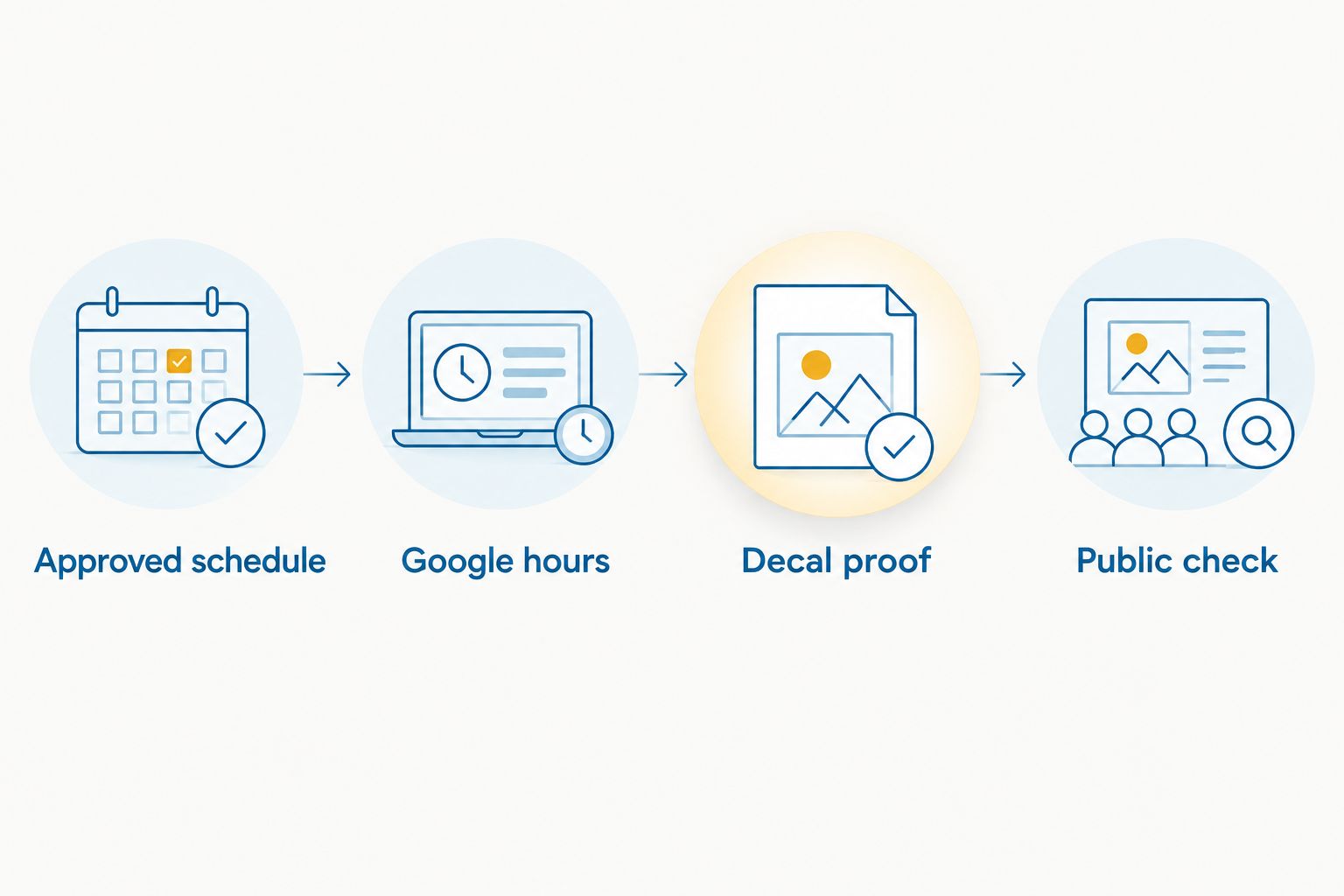
Use the approved schedule to update the regular hours in Google Business Profile. These instructions follow the profile editor in Google Search; start from the business you manage, not another business's public listing.
Expected result: The public Google Business Profile shows the approved recurring schedule for the correct location. A saved edit is not your final check; the customer-facing listing is.
Keep a record of the intended values if an edit is pending. Google reviews profile changes, so saving does not establish that the public listing already displays them. Avoid repeatedly changing correct values simply because the public view has not yet caught up.
When checking the listing, expand the weekly hours rather than relying only on an “Open” or “Closed” status. That status answers a question about the current moment; your decal needs to agree with the whole recurring schedule.
Prepare the business hours decal from the same approved schedule—not from memory or a screenshot taken before the Google edit. For Nostalgifactory custom vinyl decal buyers, the practical priority is accurate wording before installation; personalized artwork does not remove the need to check every day and time.
Expected result: A customer standing at the entrance sees the same regular schedule that a customer checking Google sees. Any temporary exception is clearly separate from those regular hours.
Readability is part of the check. Look at the lettering from the normal approach to the entrance, with the door closed and the interior behind it. Accurate text that disappears against reflections or a busy background still fails to communicate the schedule.
Use each format for the job it can actually do. Your 2026 setup needs a stable weekly display and a way to communicate exceptions without rewriting that display every time.
| Format | Best for | Advantage | Limitation |
|---|---|---|---|
| Business hours decal | Customers arriving at the entrance | Shows the regular schedule at the door | Printed times need a physical change when the regular schedule changes |
| Google Business Profile hours | Customers checking before a visit | Publishes regular and date-specific hours online | Requires account access, editing, and a public check |
| Dated temporary notice | Customers encountering a short-term exception | Explains a holiday or temporary closure at the entrance | Does not update Google and needs removal when the exception ends |
Use the decal for the regular schedule and a dated notice for exceptions. Google Business Profile supports both types of information, but you must put each in the appropriate hours section.
The adjacent workflow is a date-specific change: the weekly decal remains correct, but a particular day has different hours. Use this for your 2026 holiday planning rather than changing Monday's regular hours to represent one holiday Monday.
Expected result: The exception appears online and at the door without changing your recurring weekly schedule.
A permanent schedule change needs the main workflow instead. If you permanently stop opening on Saturdays, update the approved schedule, regular Google hours, and physical lettering together. Special hours are not a substitute for correcting a weekly schedule that is no longer true.
Check whether the edit is pending in your management view. Confirm you edited the correct location, then recheck the public listing after Google applies the change. Do not treat a management-screen screenshot as proof of publication.
Inspect the day's opening periods. Replace an uninterrupted interval with the actual separate periods using Add hours, then check the public weekly display. Make sure the decal also communicates the break.
Check whether the exception was entered in regular hours. Restore the approved recurring schedule, then enter the affected date under Special hours. Compare the permanent lettering with regular hours, not the holiday exception.
Check the Google account and its access to that specific profile. Ask the existing owner to grant the appropriate access rather than creating a duplicate listing. Resolve any profile verification requirement before continuing with the editing workflow.
Compare the physical text, the approved proof, and the master schedule to identify where the discrepancy began. Correct the physical display or the approved schedule as appropriate; do not change accurate Google hours merely to match an incorrect decal.
Give one person responsibility for approving changes, even when someone else edits Google or installs the lettering. Keep the approved schedule, decal proof, and exceptions list together so the next update starts from a known version.
A QR code can give visitors another route to the business listing, but it does not synchronize hours. Use the guide to connecting a QR code decal to Google Business Profile if you want that extra route from the entrance.
For the rest of 2026, make an hours review part of each schedule-change decision. Check the website and other customer-facing listings too, but keep this workflow's approval point the same: one agreed schedule before any channel is edited.
Can a business hours decal automatically update Google Business Profile?
No. A printed business hours decal has no automatic connection to Google Business Profile. Use one approved schedule to update Google and prepare the physical lettering separately.
What's the best way to keep my door hours and Google hours consistent?
Use one approved weekly schedule as the source for both. Update Google, check the decal proof against that schedule, and verify the public listing beside the installed lettering.
Should holiday hours go on my permanent business hours decal?
Keep date-specific holiday exceptions separate from the permanent weekly schedule. Enter them under Special hours in Google Business Profile and use a dated notice at the entrance.
How do I show a lunch break in Google Business Profile?
Enter separate opening periods for the affected day using Add hours. Your door lettering should also make the closure clear rather than suggesting continuous access.
Why don't my new Google hours appear immediately?
Google reviews profile edits, and a saved change can remain pending before appearing publicly. Check the edit status and the correct location, then verify the customer-facing listing after the change is applied.
Do I need to replace my decal for a one-day closure?
A one-day closure does not change an otherwise accurate weekly decal. Add the date under Special hours and display a temporary dated notice instead.
Does Nostalgifactory manage my Google Business Profile?
This workflow keeps Google Business Profile management separate from Nostalgifactory custom vinyl decals. The person with owner or manager access edits the profile; the approved schedule guides the physical lettering.
Check the whole week, not just today's “Open” status. A listing can correctly describe the current moment while still showing the wrong hours for another day. Your final approval should compare every recurring day, every break, and every known exception—not merely confirm that the business looks open right now.