iPhone photo to custom memorial car decal: 2026 workflow


Instead of repeatedly cropping and sending a favorite iPhone picture, use this photo to memorial car decal workflow to prepare one clear image, verified wording, and a measured placement plan. Before ordering, confirm whether the finished decal will reproduce the photograph or use it as a reference for a simpler tribute design.
A photograph and a vinyl design are different starting points. A printed portrait can carry facial detail and background color, while a cut-vinyl tribute uses lettering and shapes. Personalized does not automatically mean photo-printed.
Nostalgifactory offers a custom memorial car decal with Forever Loved, Forever Missed wording. Treat that as a memorial design to evaluate, not evidence that any uploaded photograph can become a printed portrait.
For your 2026 project, settle the production method first. That decision determines whether you need a carefully cropped photograph, a reference image for artwork, or simply a name and dates. It also saves you from preparing a file the selected design cannot use.
Choose a photograph you have permission to reproduce. If relatives have different preferences about sharing an image publicly, settle that before making a car-window tribute. A memorial can be deeply personal without showing a face.
| Format | Best for | Main advantage | Main limitation |
|---|---|---|---|
| Printed photo sticker | A recognizable photographic portrait | Preserves photographic tones and detail | Requires confirmation that the selected maker supports photo printing and the intended vehicle surface |
| Cut-vinyl memorial decal | Names, dates, and simple tribute symbols | Uses lettering and shapes without a printed photo background | Does not reproduce continuous photographic tones |
| Photo-inspired silhouette | A simplified likeness or meaningful outline | Turns the image into a graphic rather than a full portrait | Requires artwork preparation; small facial details are lost |
Choose a printed photo sticker when the actual portrait is essential. Choose cut vinyl when the name, dates, and symbol carry the remembrance. A silhouette belongs between those choices: it preserves an outline, not every detail of the photograph.
Do not decide from the word decal alone. Ask whether the final piece is printed, cut, or a combination, and whether the design includes a visible background. Those answers matter more than a generic product label.
Expected result: you can describe the finished tribute in one sentence and the maker has confirmed that the chosen process supports it.
Use 2 image files: the untouched source and the edited version. That is a project organization recommendation, not a requirement for a particular decal product. It gives the maker room to adjust framing without asking you to find the original again.
For a 2026 memorial project, use a clearly named folder such as Memorial decal 2026. Keep the file names neutral if the folder will be shared outside your family.
Expected result: you have an original to return to and a separate image you can edit without losing your starting point.
Apple changes control placement between iOS versions, so the crop control's position depends on your installed version. Use the crop tool rather than taking a screenshot of the editor; a screenshot adds an unnecessary copy of the image.
Look closely at the eyes, face edges, and hair. If the image is blurry there, extra sharpening does not recover the missing detail. Choose a clearer source when one exists, or simplify the design instead of forcing a detailed portrait from a soft image.
Do not remove the background unless the intended production process needs it. A background-free preview is not proof that a maker accepts transparency or that a cut-vinyl version is ready.
Expected result: the working image shows the person clearly, keeps important features intact, and suits the confirmed format.
Keep wording as selectable text rather than embedding it only in an image. That lets the maker reproduce spelling and punctuation without retyping from a small preview. Describe the date format explicitly if a numeric date would be ambiguous.
For your 2026 artwork package, keep a single current wording note. Replace outdated drafts rather than leaving several conflicting versions beside the photo.
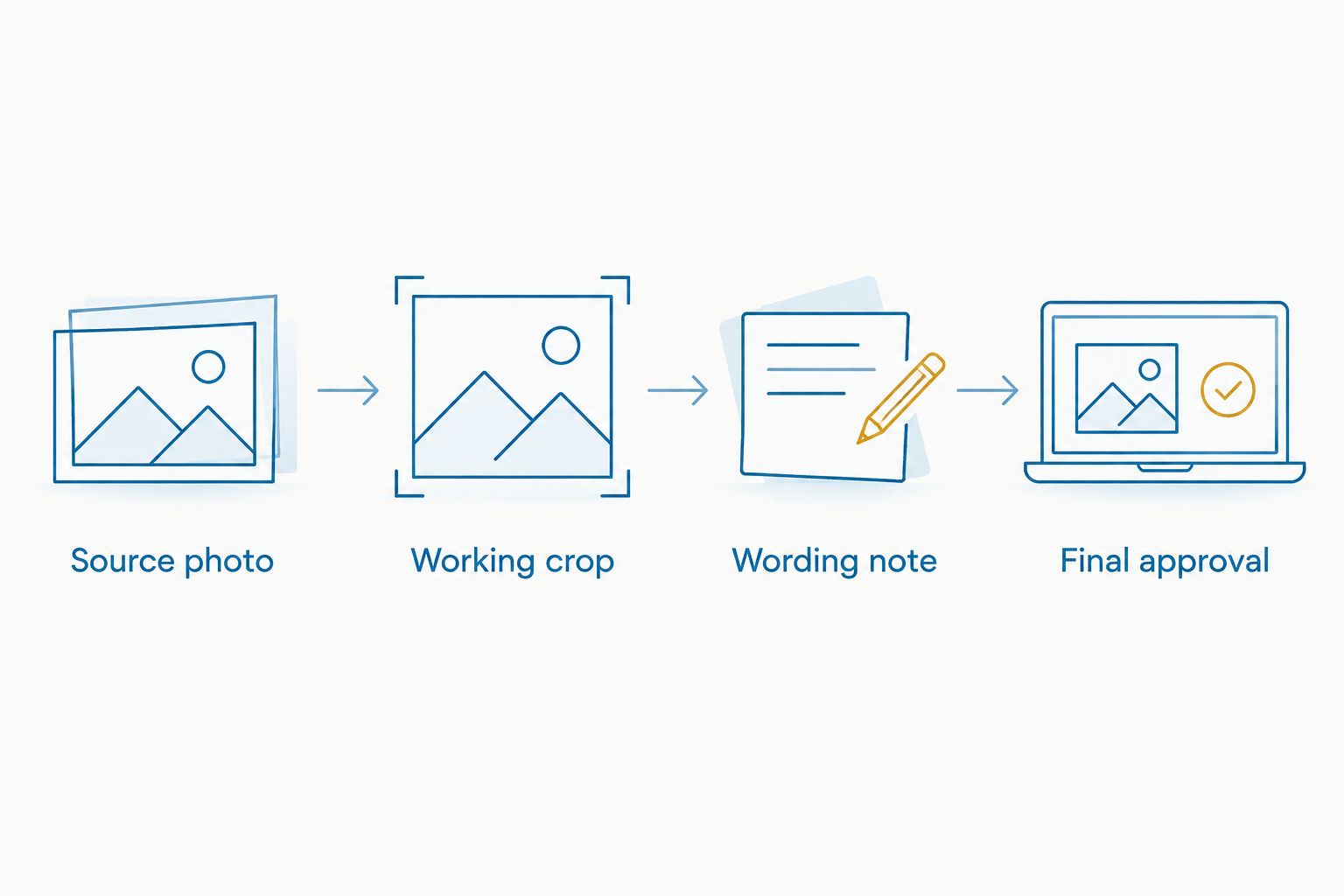
A useful submission note explains what must stay unchanged: the name's spelling, the chosen expression, and any meaningful detail in the image. Describe those priorities plainly; do not assume the maker knows why a particular detail matters.
Expected result: the recipient can identify the correct image, exact wording, intended dimensions, and production method without guessing.
Use measurements with units, such as inches, in your submission. A request for a small decal does not define a usable production size. Nor does a screen preview tell you how much glass the finished tribute will cover.
Check applicable vehicle-window rules before selecting a location. If you cannot establish that the proposed position preserves visibility and meets local requirements, choose a different location.
Expected result: the requested dimensions fit the actual surface without interfering with visibility or vehicle equipment.
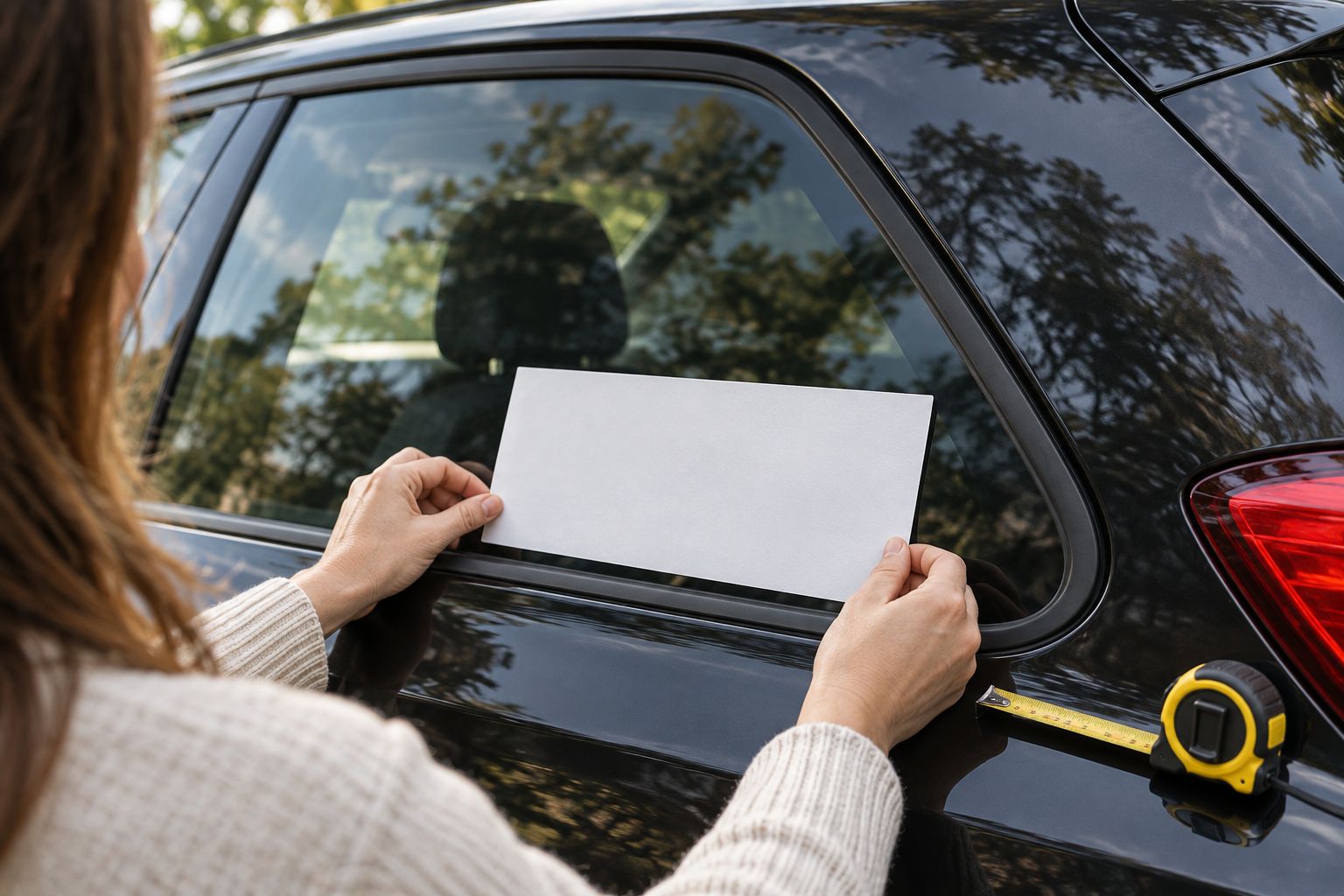
For a 2026 approval checklist, include both content and placement. A correctly spelled name is not enough if the image is cropped incorrectly or the piece is too large for the chosen location.
Approve one final version, not a collection of loosely related messages. If someone changes the wording after approval, ask the maker to confirm which version now controls production.
Follow the supplied installation instructions once the decal arrives. Application method, surface preparation, and suitable conditions depend on the specific material; this photo-preparation guide does not replace those instructions.
Expected result: the final design, dimensions, orientation, and wording match the tribute you intend to display.
You can use an iPhone photograph to plan a memorial without putting the portrait on the vehicle. A meaningful hobby, familiar gesture, or simple symbol can guide the tribute instead.
Nostalgifactory memorial car decals are best for buyers who want personalized wording and an established tribute design. The limitation is equally clear: a name-and-date product should not be treated as a photo-printing service unless that capability is confirmed.
If you replace the source photograph during this 2026 workflow, repeat the crop and approval checks. A new image changes framing, contrast, and available space even when the wording remains identical.
Expected result: the photograph helps you choose a meaningful tribute without creating an unsupported requirement to reproduce it.
Return to the original in Photos and confirm it has fully loaded. Avoid screenshots and message previews; if the original is already soft, use a clearer picture or a less detailed design.
Ask which format the maker accepts before converting anything. Keep the original and create a separate accepted-format copy; changing a file extension alone does not convert the image.
Confirm whether the finished design includes a printed background or requires transparency. Request the appropriate artwork preparation rather than assuming a phone's subject cutout is production-ready.
Stop approval and send one corrected wording note. Ask the maker to confirm the replacement version, especially if an earlier message already authorized production.
Repeat the paper-template check at the actual proposed dimensions. Reduce or rearrange the design before approval; shrinking everything together can make the wording harder to read.
Once the photograph and wording are settled, you can prepare a more deliberate layout. Keep decorative elements secondary to the name or portrait, and do not add details simply to fill empty space.
If you want to assemble the layout in a design app, use the Canva design to custom vinyl decal workflow. Confirm the maker's export requirements before building the artwork; the app does not determine the production method.
For a family project, designate one person to submit corrections and approval. Others can contribute memories and wording without sending competing instructions to the maker.
Can I turn an iPhone photo into a memorial car decal?
Yes, if the decal maker supports the intended photo-printing or artwork-conversion process. Confirm that capability first; a personalized name-and-date decal does not automatically include portrait reproduction.
Does Nostalgifactory print photographs on memorial car decals?
Confirm portrait printing with Nostalgifactory before submitting an image. Its custom memorial product should not be assumed to reproduce photographs simply because it offers personalization.
Is a printed photo sticker better than a cut-vinyl memorial decal?
A printed photo sticker is better when you want the actual portrait, while cut vinyl suits lettering and simple shapes. Choose the production method according to what the tribute needs to preserve.
Should I remove the background from my iPhone photo?
Remove the background only when the maker's requirements or agreed design call for it. A subject cutout does not turn a photograph into vector artwork or confirm that the exported file is suitable for production.
Can I use a screenshot for a memorial decal?
Use the original photograph rather than a screenshot whenever it is available. Screenshots and message previews can discard detail that matters when the image is reproduced.
What should I send with my memorial photograph?
Send the source image, a working crop, exact wording, requested dimensions with units, and the intended application surface. Follow the maker's submission instructions and identify which version is final.
How do I choose the right size for a memorial car decal?
Measure the proposed location and test a paper template at the requested finished dimensions. Check visibility, nearby vehicle equipment, and applicable window rules before approving the size.
The photograph you love most is not always the easiest one to reproduce. Keep that favorite image even if you choose a simpler decal; the finished tribute does not have to carry every part of the memory.
Before approval, read the name and dates from the final design rather than from your original note. That last check catches mistakes in the actual version being made.